
Time zone, teams & renaming your dashboard
The last few settings shape the whole workspace: the time zone every date is read in, separate teams for different clients, and the dashboard's name.
Setting Your Time Zone
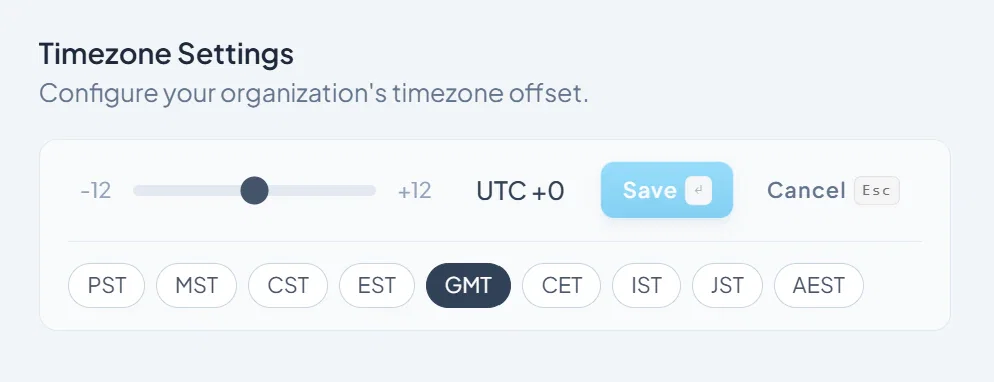
At the bottom of the Settings page, you can adjust your dashboard's time zone. This setting controls how post dates and times are displayed across Socialpruf; every post's publish time will be shown relative to the time zone you select.
Pick the zone that matches where your team operates most often. If you're managing accounts across multiple regions, choose the zone where you'll spend the most time reviewing data.
Creating New Teams
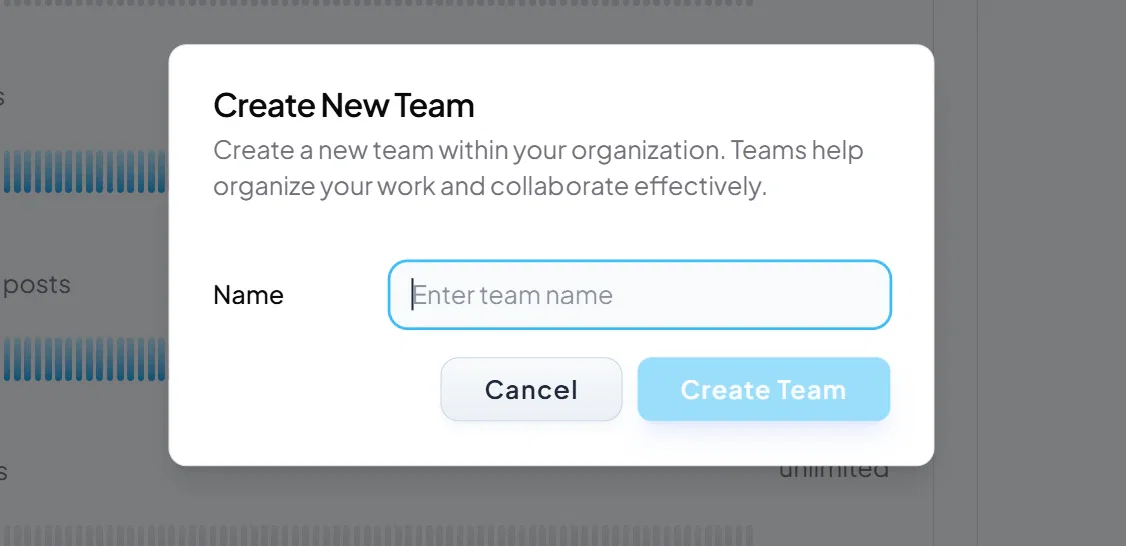
Teams in Socialpruf are separate dashboard workspaces; each with its own accounts, campaigns, goals, and members. Creating a new team is the right move when you want different groups inside your organization to work in their own space without their data and configuration mixing with yours.
To create a new team
Head to the left-hand rail on the Settings page and click to add a new team. This creates a fresh, independent dashboard that the team members you assign can access on its own.
Why teams matter
Teams give different parts of your organization their own workspace; useful for agencies managing multiple clients, or for internal teams that need to stay focused on their own portfolios without seeing each other's data.
Teams don't multiply your account usage: Loading the same social account across multiple teams does not count as multiple accounts toward your plan limit. You can share accounts across teams freely without burning through your usage.
Renaming Your Dashboard
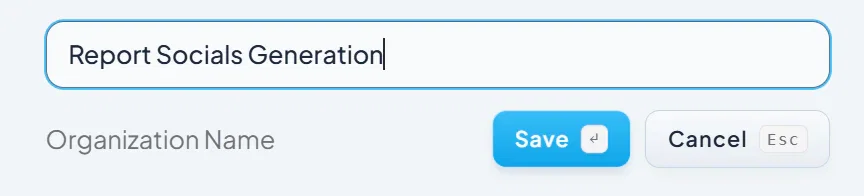
To change the name of your Socialpruf dashboard, head to the top right of the Settings page and edit the dashboard name directly. Use this to brand your workspace with your organization's name, your client's name, or whatever label makes the dashboard easy to identify.