
Importing your accounts
Accounts are the raw material of Socialpruf, and getting them in is your first job. Find your way around the Manage page, then track and remove accounts.
The Manage page
Of the three tabs you just met, Manage is the administrative hub; where you set up, organize, and maintain the building blocks of your dashboard: accounts, brands, campaigns, goals, and reports. Analytics is where you do your day-to-day analysis. Manage is where you configure how everything fits together.
It's also where your very first job lives: getting your accounts into Socialpruf. This lesson covers that end to end and the next one organizes what you've brought in. The rest of Manage comes back later in the course.
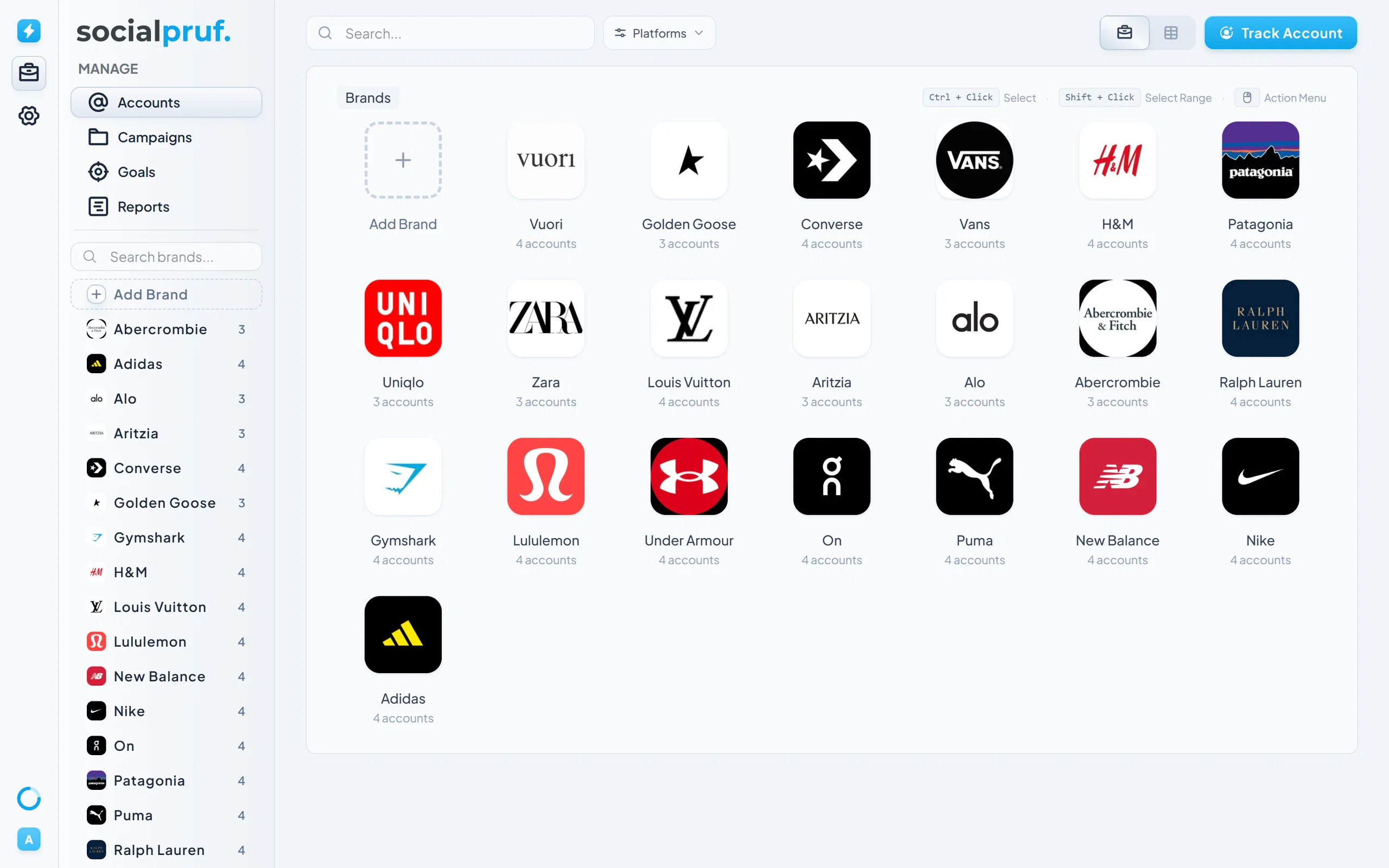
Getting to the Manage Page
From the Nav Bar, click the Manage tab. You'll see four pages in the Product List:
- Accounts - add and remove the social accounts you're tracking.
- Campaigns - create and organize campaigns into folders.
- Goals - view, edit, and create performance goals.
- Reports - manage every report you've generated.
For now stay on Accounts - that's where your accounts come in.
Tracking New Accounts
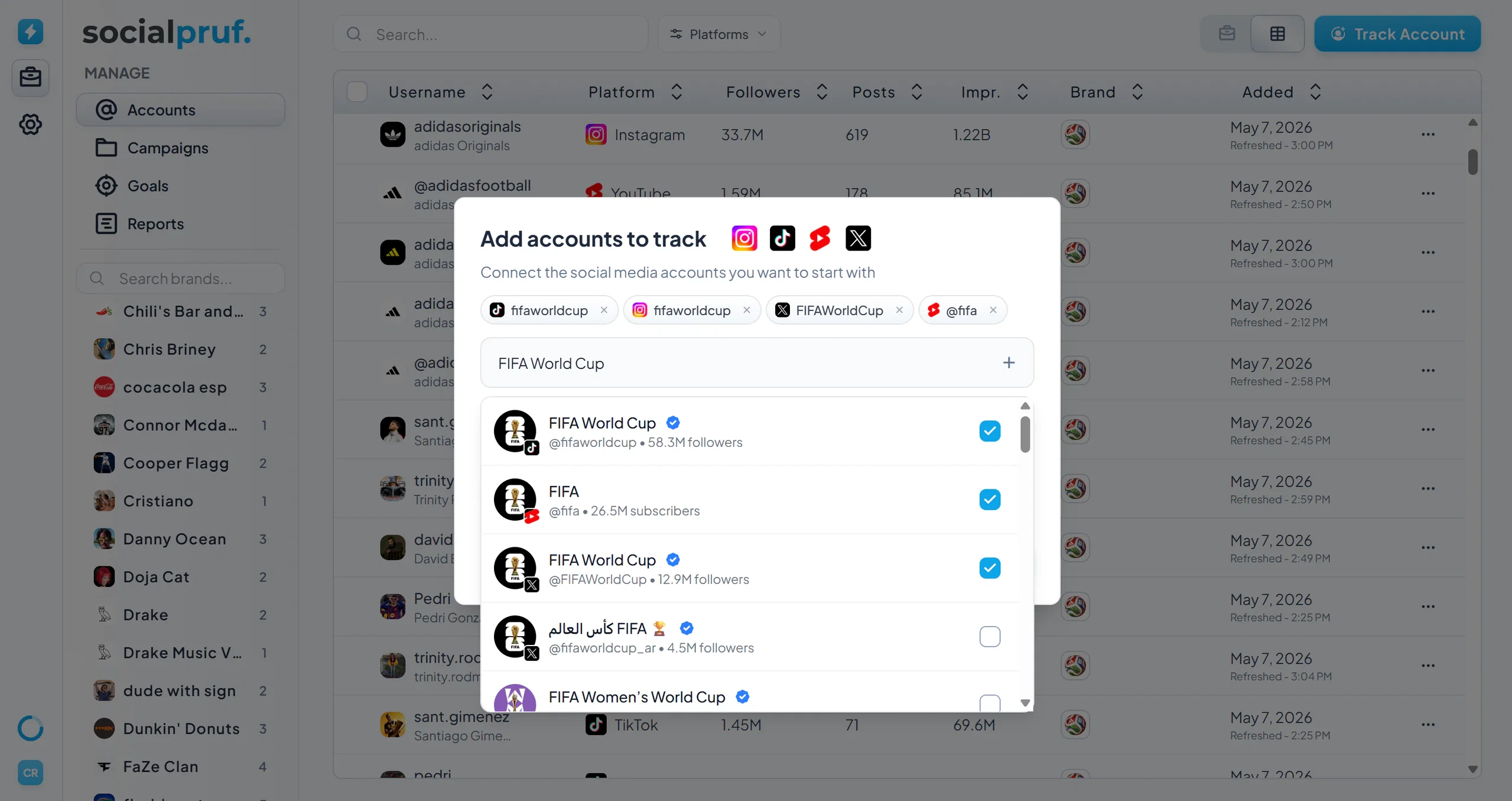
To add a new account to Socialpruf, start on the Accounts tab inside Manage.
To track an account
- Click Track Account in the top right.
- In the modal that appears, either paste the URL of the account you want to track, or use the search bar to find it directly.
- Choose how to assign the account: leave it unassigned for now, since assigning comes up shortly.
- Click Track to finish.
The account will sync into your dashboard and begin populating data.
Removing Accounts
To remove an account from your Socialpruf dashboard:
- On the Accounts tab, make sure you're in Table View in the top right toggle.
- Find the account you want to remove and click the three dots on the far right of the row.
- Click Delete Account.
Worth knowing: Deleting an account removes it from your dashboard and also subtracts one from your account limit; freeing up a slot if you want to track a different account in its place.