
Settings overview
Settings is where Socialpruf becomes yours. Find your way around the page, and read your usage against your plan so you know how much room you have.
Introduction
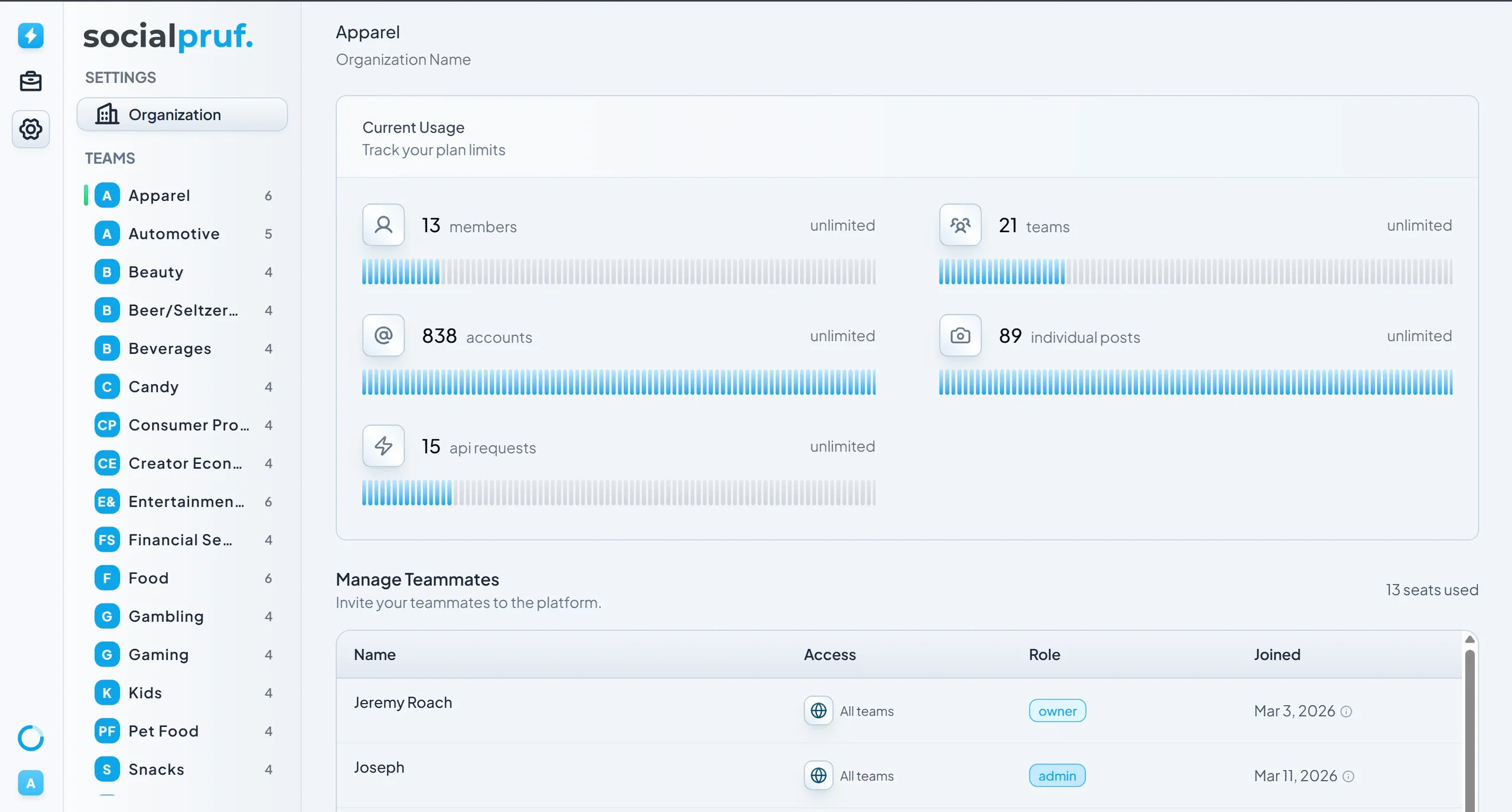
The Settings page is where you'll go to manage who has access to your Socialpruf dashboard and how your workspace is structured. While the Analytics and Manage tabs cover the day-to-day work of analyzing and organizing your data, Settings is about governance; controlling permissions, configuring preferences, and keeping tabs on usage.
This is also where you'll create new teams; separate dashboards for different parts of your organization; without doubling up on your account usage.
This lesson gets you to the page and shows you what's on it. Across the rest of the chapter you'll:
- Read your dashboard usage against your plan at a glance
- View and manage the teammates on your Socialpruf account
- Invite new members and assign the right permission role
- Understand the differences between Admin, Member, and Viewer access
- Configure your dashboard's time zone for accurate post timing
- Create separate teams for different workspaces without duplicating accounts
- Rename your dashboard to reflect your organization
Getting to the Settings Page
From the Nav Bar, click Settings . The Settings page will open, with your dashboard usage stats at the top, your team listed below, and configuration options spread throughout.
Your Dashboard Usage at a Glance
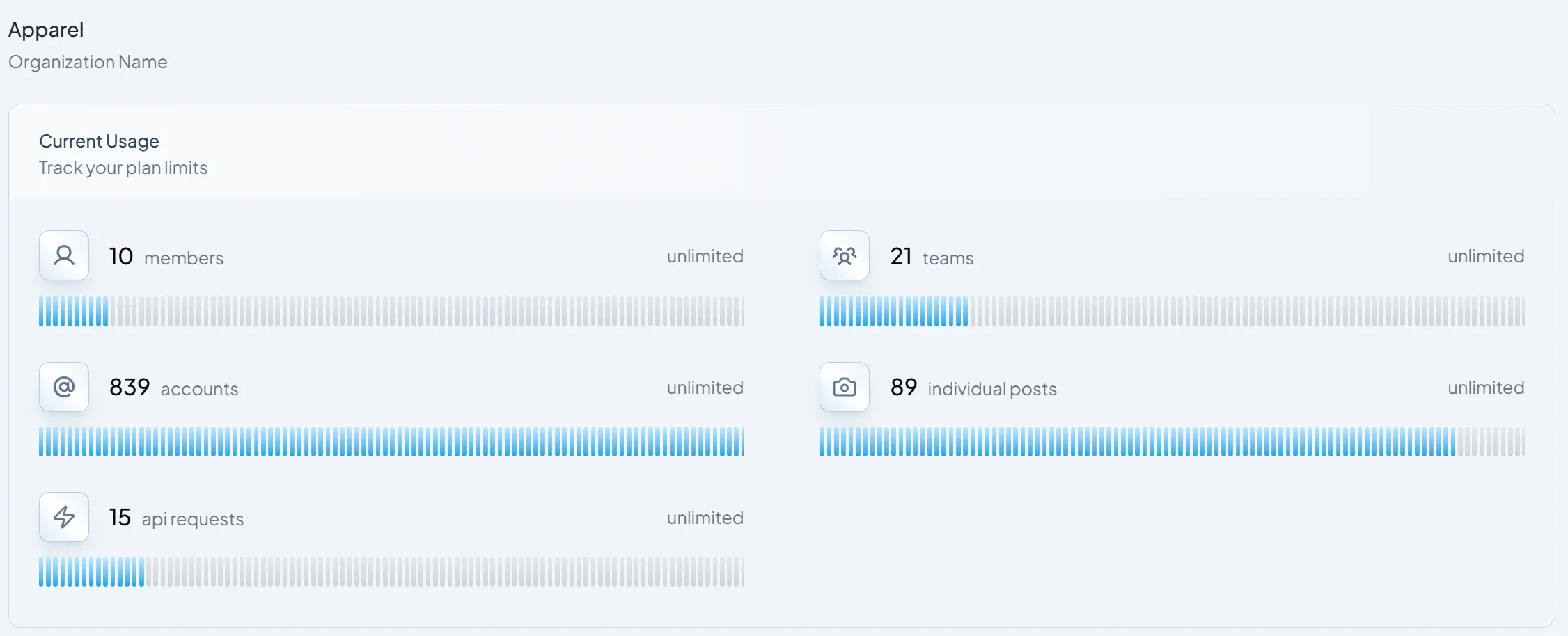
At the top of the Settings page, you'll see four key metrics that summarize how your Socialpruf workspace is being used:
- Members - the number of teammates currently on your dashboard.
- Teams - the number of separate team workspaces you've created.
- Accounts - the number of social accounts loaded into your dashboard.
- Individual posts - the number of standalone posts you're tracking (from CSV uploads or single-post imports).
- API requests - the number of API requests sent (enterprise feature).
Pro tip: Use this view to keep an eye on where you are against your plan limits. Reviewing it once a month helps you plan ahead before you hit a ceiling on accounts.