
Editing goals
Targets and timelines change. Adjust a goal's name, dates, and KPI targets while keeping its original measurement scope intact.
Editing goals
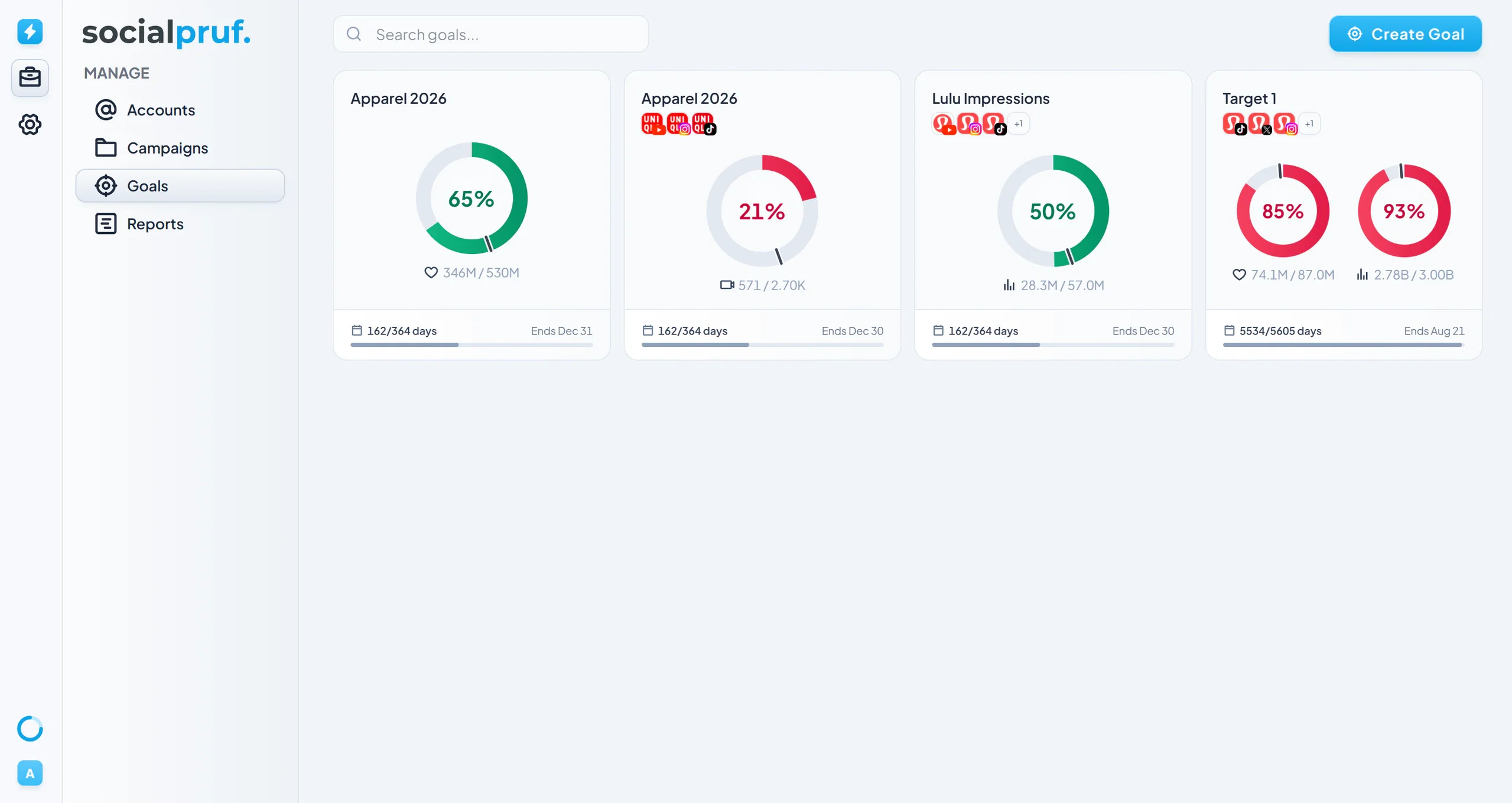
The Goals tab gives you a single view of every goal you've created; the best place to see all of your active targets at a glance.
Reading the goal cards
Each goal appears as a card showing its percentage to go and a pacing line that compares your current trajectory against where you need to be to hit the goal on time. You can scan the whole tab and instantly see which goals are tracking and which need attention.
Editing a goal
- Click into the goal card you want to edit.
- Click the pencil icon under Targets.
- From here you can change the target value, the date range, the goal name, or delete the goal entirely.
What you can change
- Goal name - rename it at any time.
- Date range - move the start or end date. Every target bar re-paces in real time as you pick new dates, so you can see the effect before you save.
- Targets - edit the number on any KPI you're tracking, or remove a target you no longer care about. A goal has to keep at least one target, so the last one can't be deleted.
The filters a goal was built with, the accounts, brands, or campaigns it measures, are shown for reference but are fixed when the goal is created. To measure a different slice, create a new goal.
Adding, viewing, and deleting
The footer of the goal panel has three more actions: Add Targets to track another KPI under the same goal, View Goal to jump to it on the Overview page, and Delete to remove it for good.
Creating a new goal
Click Create Goal in the top right to start a new goal from this tab. (You can also create goals directly from the Overview page, covered in the Analyze chapter.)