
Your team, invites & permission roles
Socialpruf is better with your whole team in it. See who's already on board, invite new members, and set permission roles to control what each can do.
Viewing Your Current Team
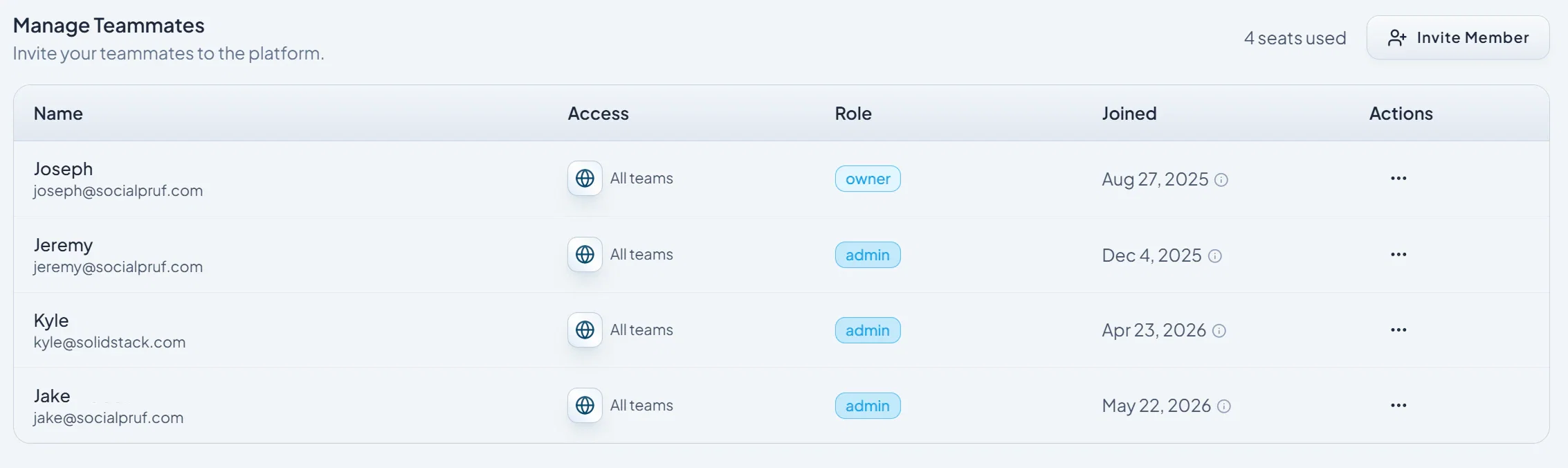
Scroll down on the Settings page and you'll see a list of every teammate currently on your Socialpruf dashboard, along with their role and access level. This is your single source of truth for who has access to your data.
Inviting New Team Members
To bring a new person onto your dashboard:
- Click Invite Member on the right-hand side of the team section.
- Type the new member's email address.
- Select the permission role you want to assign them (covered in the next section).
- Send the invite.
The invitee will receive an email to join your dashboard. Once they accept, they'll appear in your team list with the role you assigned.
Understanding Permission Roles
Socialpruf has three permission roles, each suited to a different type of user:
Admin
Admins have full access to everything inside the dashboard. They can create, edit, and delete content; manage settings; and invite other members to the workspace. Reserve this role for team leaders and anyone responsible for governance.
Member
Members have access to the specific teams you add them to. They can do everything inside the dashboard; create reports, set up campaigns, build goals; but they cannot invite other members. This is the right default for most active users.
Viewer
Viewers can access the dashboard to look at data, but they cannot create anything; no reports, no campaigns, no goals. Use this role for stakeholders who need visibility into performance but won't be doing hands-on work in the platform.
Choosing the right role: Default to Member for active users and Viewer for stakeholders. Reserve Admin for the small group of people who actually need to manage the workspace; fewer admins means less risk of accidental changes.