Boards
Boards are where the things you find get kept. Pin posts, accounts, notes and colors, drag content in from anywhere, and share the whole thing as a live link.
What a board is
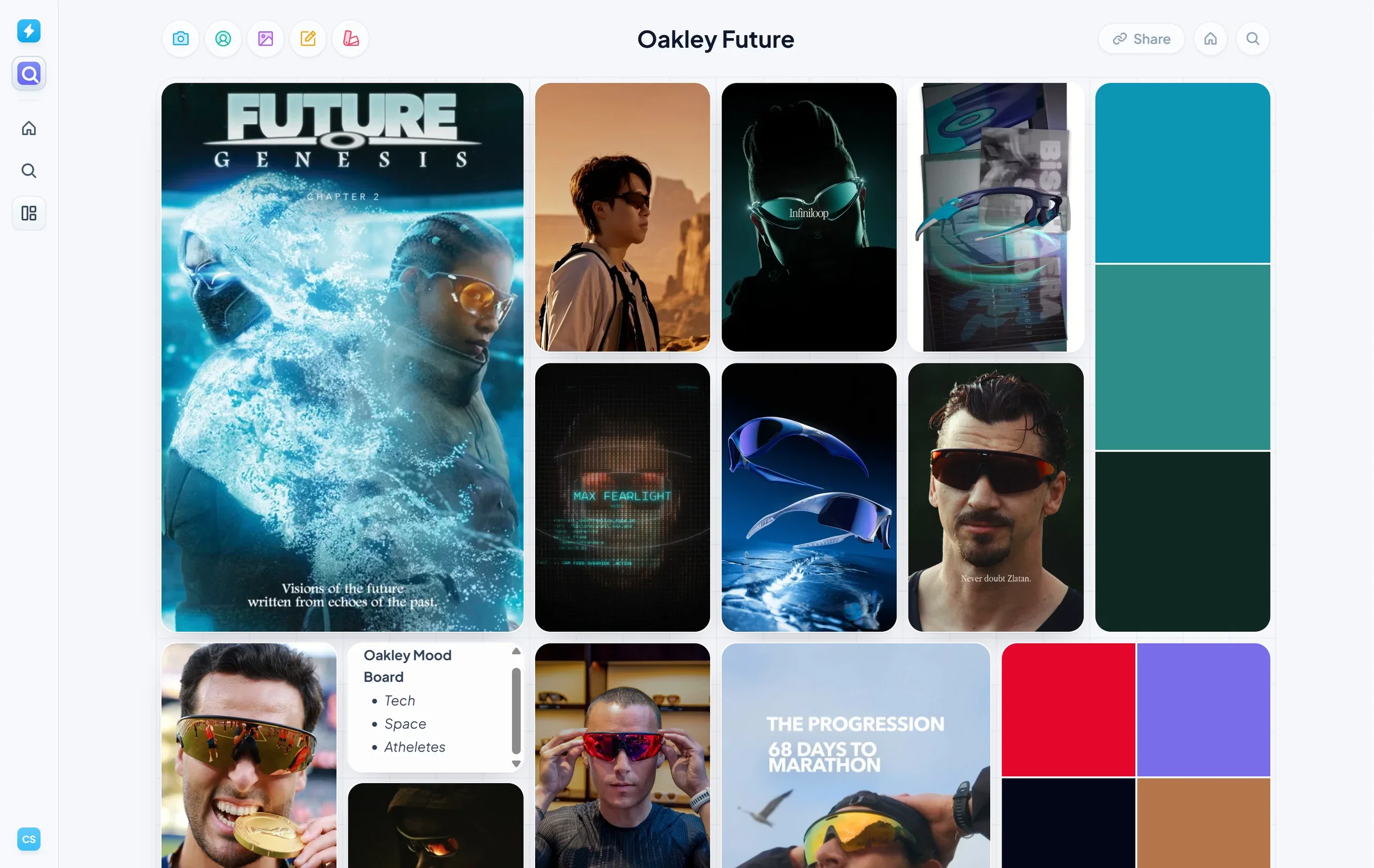
Boards is the third tab in the left navigation bar, underneath Search. A board is a canvas for what you find: a mood board, a social feed plan, a brand strategy deck, a competitor watch list. You can organize them into folders, and they all live in one place.
Boards versus campaigns
Boards behave a lot like the campaigns you built earlier in this course, with one important difference:
- A campaign holds content you track and measures it.
- A board holds content you search and displays it for inspiration.
Campaigns are for reporting on what you did. Boards are for deciding what to do next.
Building a board
A board holds more than posts. You can add:
- Posts: pin any piece of content you found in Discover.
- Accounts: keep a creator or competitor on the board itself.
- Images: reference material that didn't come from social.
- Notes: the context, so nobody has to guess why something is pinned there.
- Color swatches: the palette a campaign is built around.
Click on the boards tab and press view all. From here you can create new boards and sort them into folders.
Getting content onto a board
There are three ways in, and you'll end up using all of them:
- Click an empty card inside the board: search for a post, some content, or an account without leaving the board.
- The search button in the top right: opens the search modal over the board so you can drag results straight in.
- Drag from anywhere in Discover: the home page, a trending topic, a set of search results. If you can see it, you can drag it onto a board.
Dragging is the one to get used to. It's much easier to grab something when you spot it than to go hunting for it again later, and inspo boards end up mostly built just by scrolling as you search.
Sharing a board
Boards share exactly the way reports do: a simple URL you can send to anyone in the world, inside your team or outside it, with no login needed at the other end.
Pro tip: Send the board instead of the deck. A client or a creator following a live link sees your thinking as it develops, and you never have to re-export anything.