
The content grid
The Explore page lays out every post across every account in one scrollable content grid. Filter and sort thousands of them down to the set you care about.
Introduction
You met the Explore page briefly back in Get Started, when you tagged posts into campaigns. This is the full tour. Explore is where you go to discover, search, and curate the content your accounts are producing. Think of it as Pinterest for organic social media: a visual grid of every post across every account you've loaded in, designed for fast browsing, deep search, and easy organization into campaigns.
If the Overview page tells you how you're performing, the Explore page tells you what you're posting and which pieces are driving that performance. By the end of this lesson, you'll be able to find any post in the content grid in seconds, whatever the account, platform, or date range it came from.
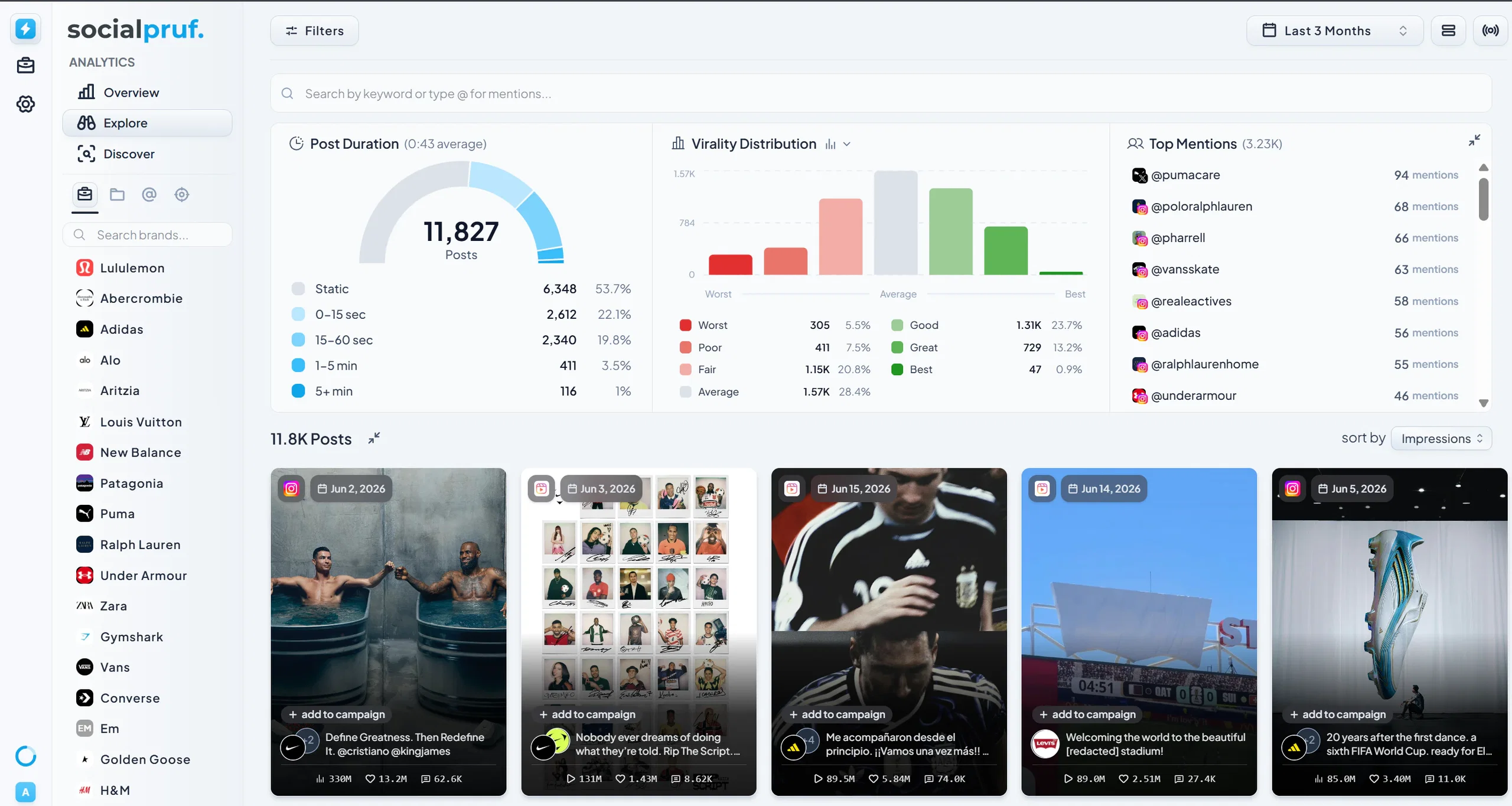
Getting to the Explore page
From any screen in Socialpruf, click Analytics in the Nav Bar, then select Explore in the Product List. The page will load with all of your content arranged in a grid layout.
The Content Grid
The Explore page displays every post from every account you've loaded into Socialpruf, arranged in a visual, scrollable grid. Each tile represents a single piece of content, giving you a fast way to spot what's been published, what's performing, and where you might want to dig deeper.
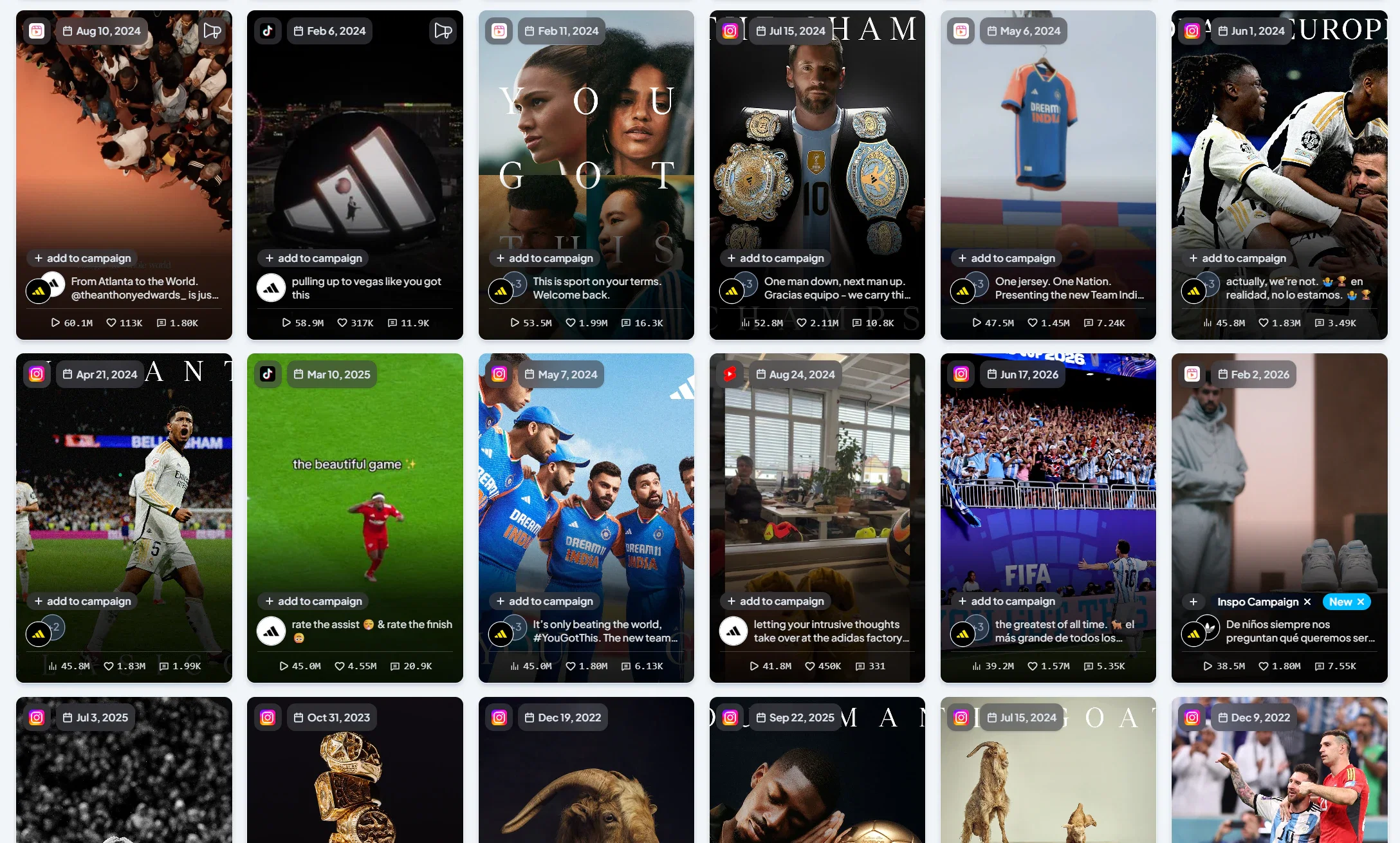
From here, you'll use filters, sorting, search, and insights to narrow the grid down to exactly the content you want to look at.
Filtering your view
Similar to the Overview page, the Explore page gives you filter controls in six locations, each designed for a different speed of selection.
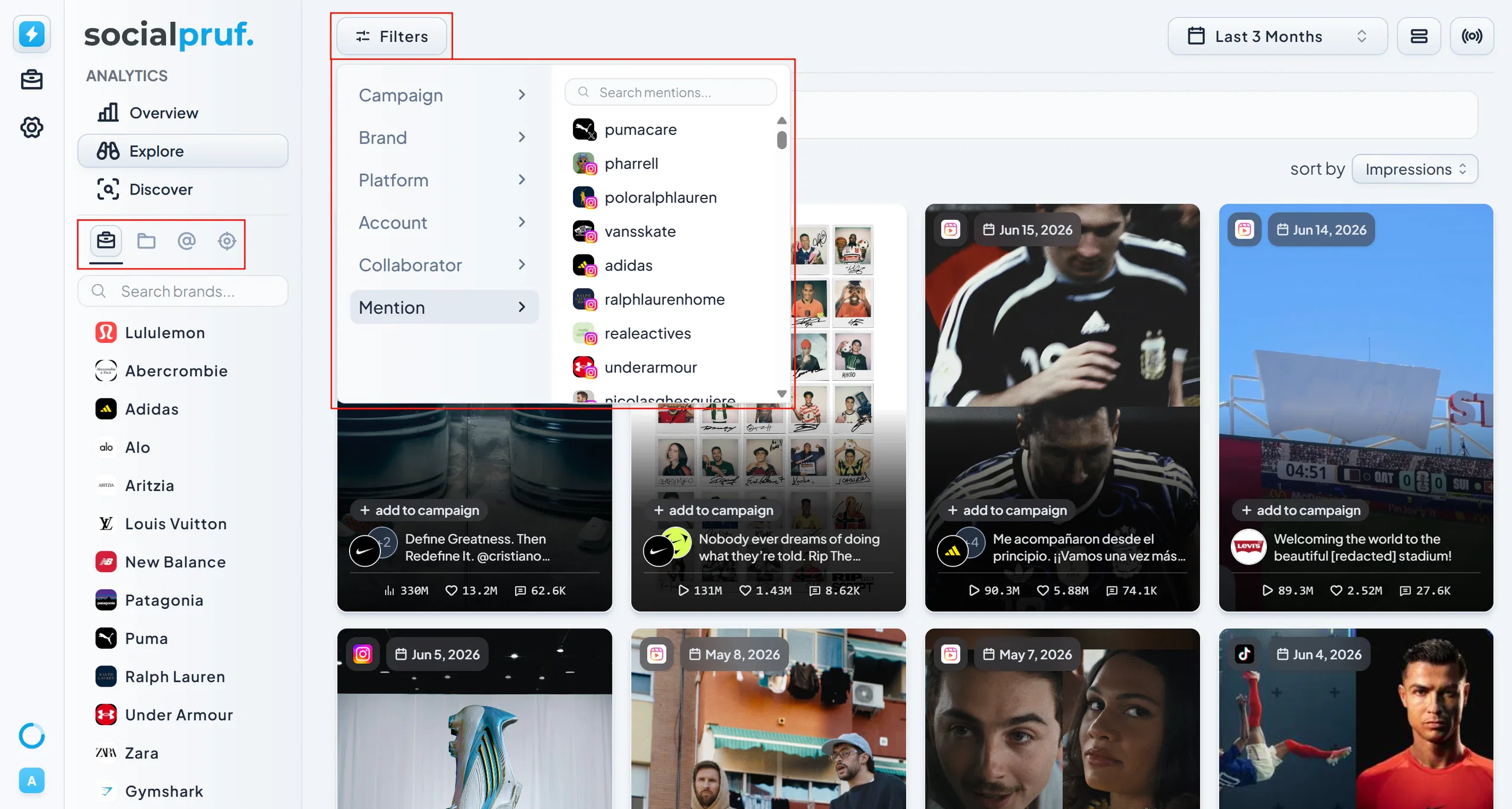
Content Menu: the quick-access bar
Use the Content Menu to filter by:
- Brands
- Campaigns
- Accounts
Top left: detailed filter menu
The top-left filter menu mirrors the quick-access options and adds finer controls. Here you can filter by:
- Campaigns
- Brands
- Platforms
- Accounts
- Collaborators
- Mentions
Click any of these and the content grid will instantly recalculate to show only the posts matching that filter.
Top right: the date range filter
The date range filter in the top right works exactly the same way it does on the Overview page. You can:
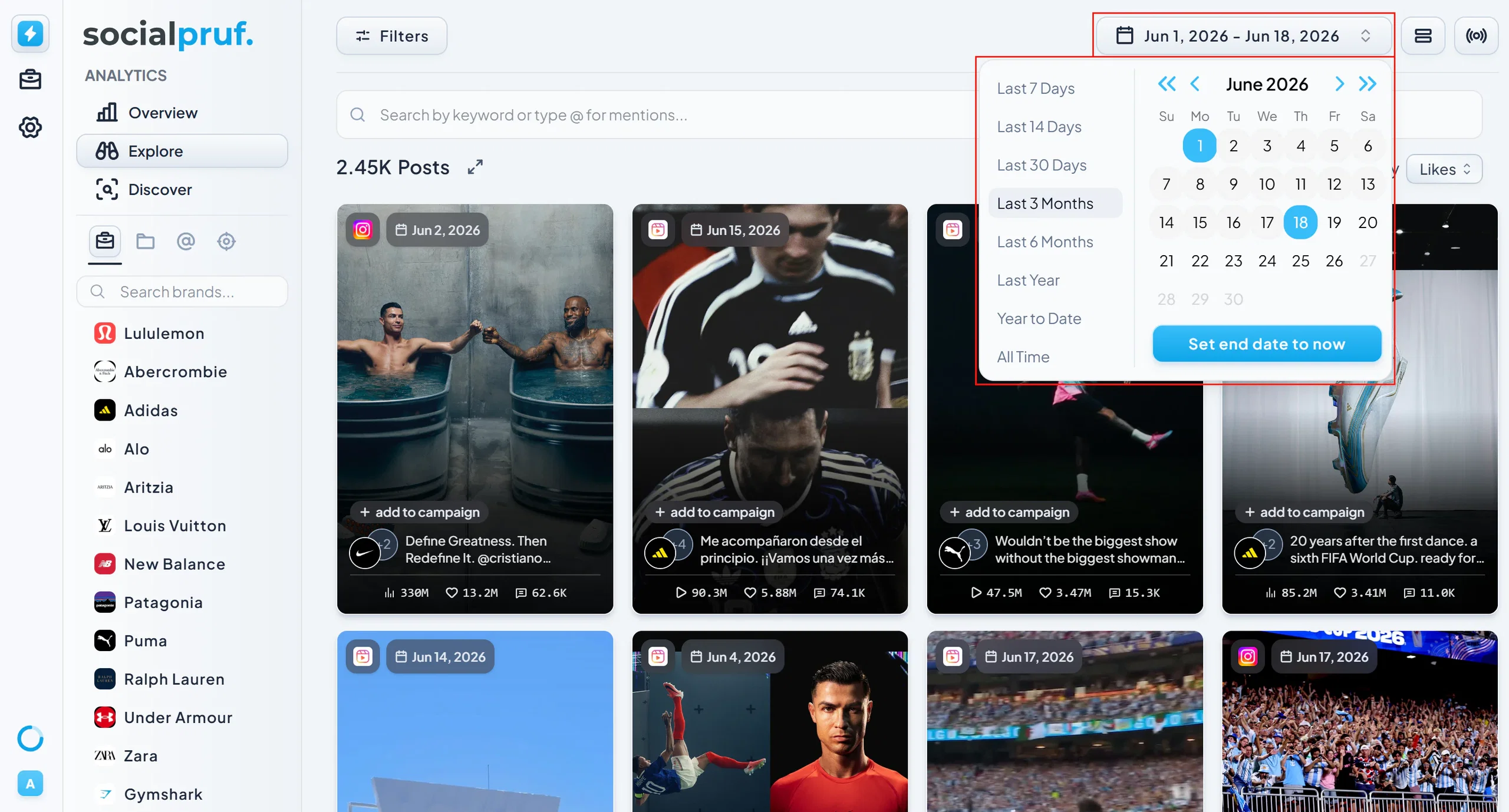
- Choose from preset ranges (Last 7 days, Last 14 days, Last 30 days, and so on).
- Pick a custom range using the calendar.
Pro tip: If you're searching for a specific piece of content you remember posting, narrow the date range first. It's the single biggest reduction in noise you can make before searching.
Sorting your posts
On the right-hand side of the page, use the Sort By menu to order your posts by:
- Newest first
- Oldest first
- Likes
- Comments
- Engagement
- EMV
Sorting works within whatever filters you currently have applied, so you can answer questions like “What were my top three posts by EMV for the brand last month?” with a couple of clicks.