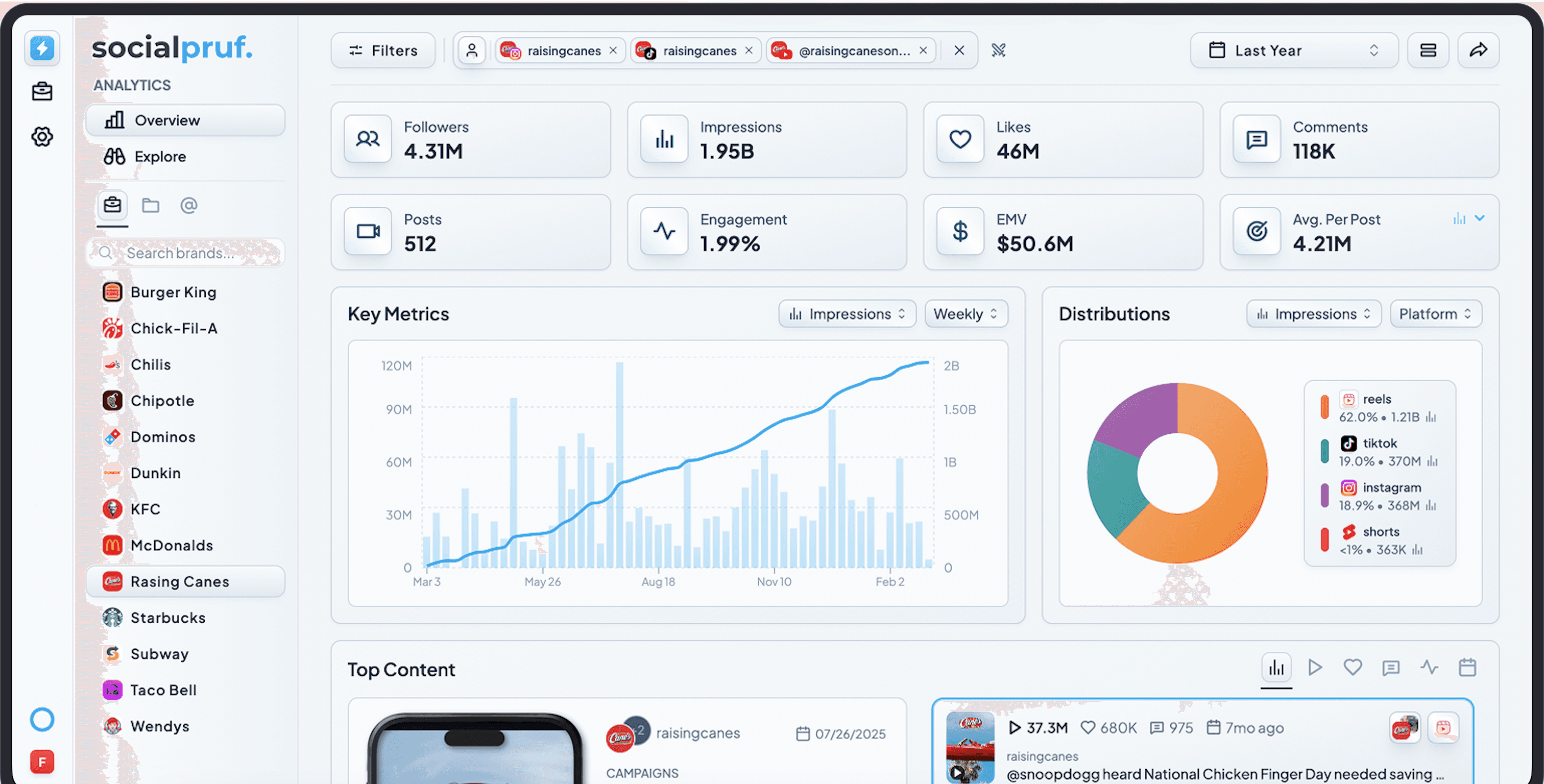

Turn a creator's history of brand collaborations into a live, shareable portfolio you can send to any prospective partner.
Overview
Turn a creator's history of brand collaborations into a live, shareable portfolio you can send to any prospective partner.
This guide walks you through how to:
- Identify every brand a creator has partnered with using Top Mentions
- Build a clean, organized campaign for each brand partnership
- Group every partnership campaign into a single portfolio folder
- Generate a live, interactive report you can send to any prospective brand
- Choose between Public Link and Custom Report formats based on your audience
Why build a portfolio view? When you're pitching a creator to a new brand, the most persuasive thing in the room isn't a stat — it's receipts. A portfolio shows prospective brand partners exactly what worked, with whom, and how well. Instead of saying "our creator drives strong engagement," you can send a link that lets the brand see real numbers from every comparable partnership the creator has done.
By the end of this guide, you'll have a live, interactive portfolio report that updates automatically — so the same link you send today still tells the truth six months from now. It works for talent agencies pitching creator rosters, individual creators pitching themselves, and anyone whose job is convincing brands that a partnership will pay off.
Step 1: Identify the creator's brand partnerships using Top Mentions
The fastest way to surface every brand a creator has worked with is to let the data tell you, not your memory. Top Mentions ranks every account the creator has tagged or referenced, with the most-mentioned brands at the top — a clean shortcut to the full partnership history.
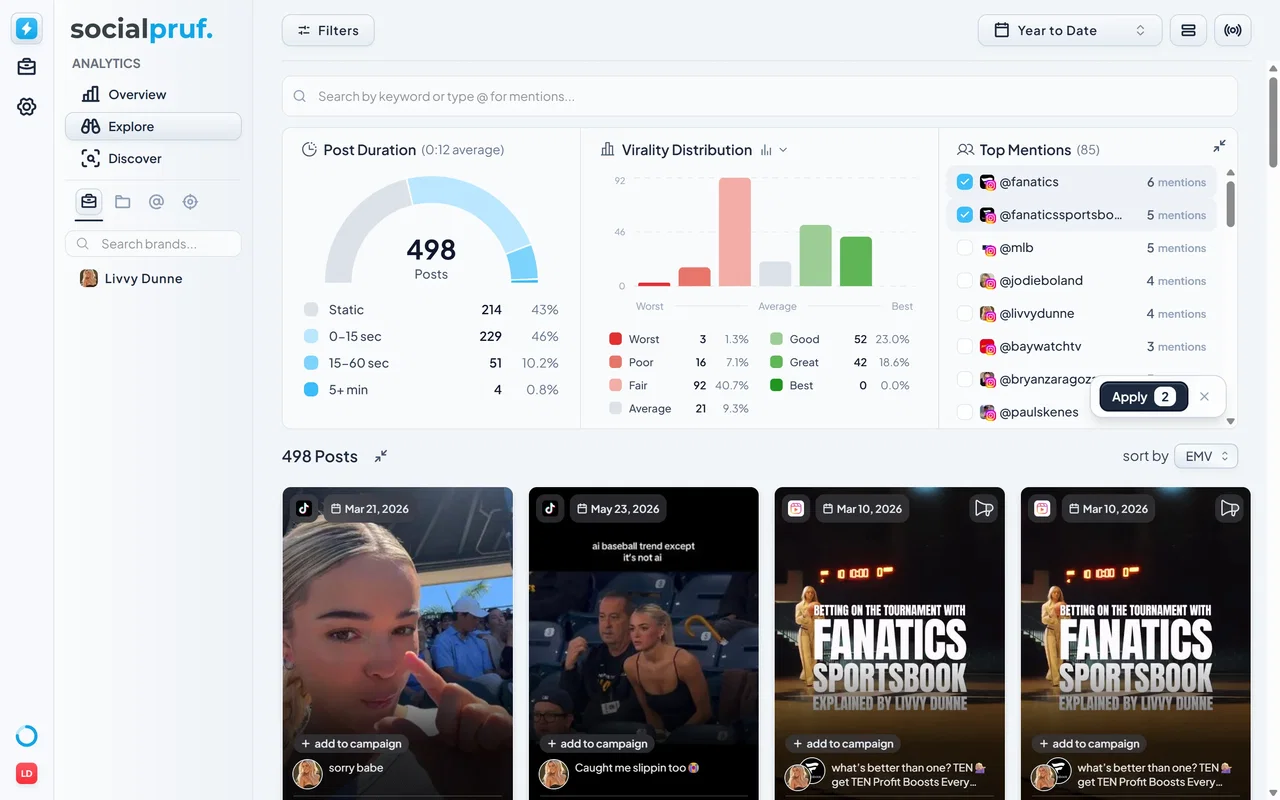
To find the creator's partnership history:
- Open the Explore page in the Analytics tab.
- In the left rail, filter by the creator's account (or their brand, if they have multiple accounts grouped under one brand).
- Set the time filter in the top right to Year-to-Date (or a longer range if you want a more complete picture).
- Click View Insights next to the post count, then select Top Mentions.
- Scroll through the list and note down every brand you want to include in the portfolio. These are the partnerships you'll build campaigns for in Step 2.
💡 Mentions vs. partnerships: Not every mention is a paid partnership. Look for branded content patterns — paid partnership disclosures, "ad" or "sponsored" tags, multi-post campaigns, and consistent visual treatment. If you're unsure whether a mention counts, click into the post to confirm before including it.
Step 2: Build a campaign for each brand partnership
Now you'll turn your list of brands into structured campaigns. Each brand gets its own campaign so the portfolio breaks down cleanly by partner in the final report.
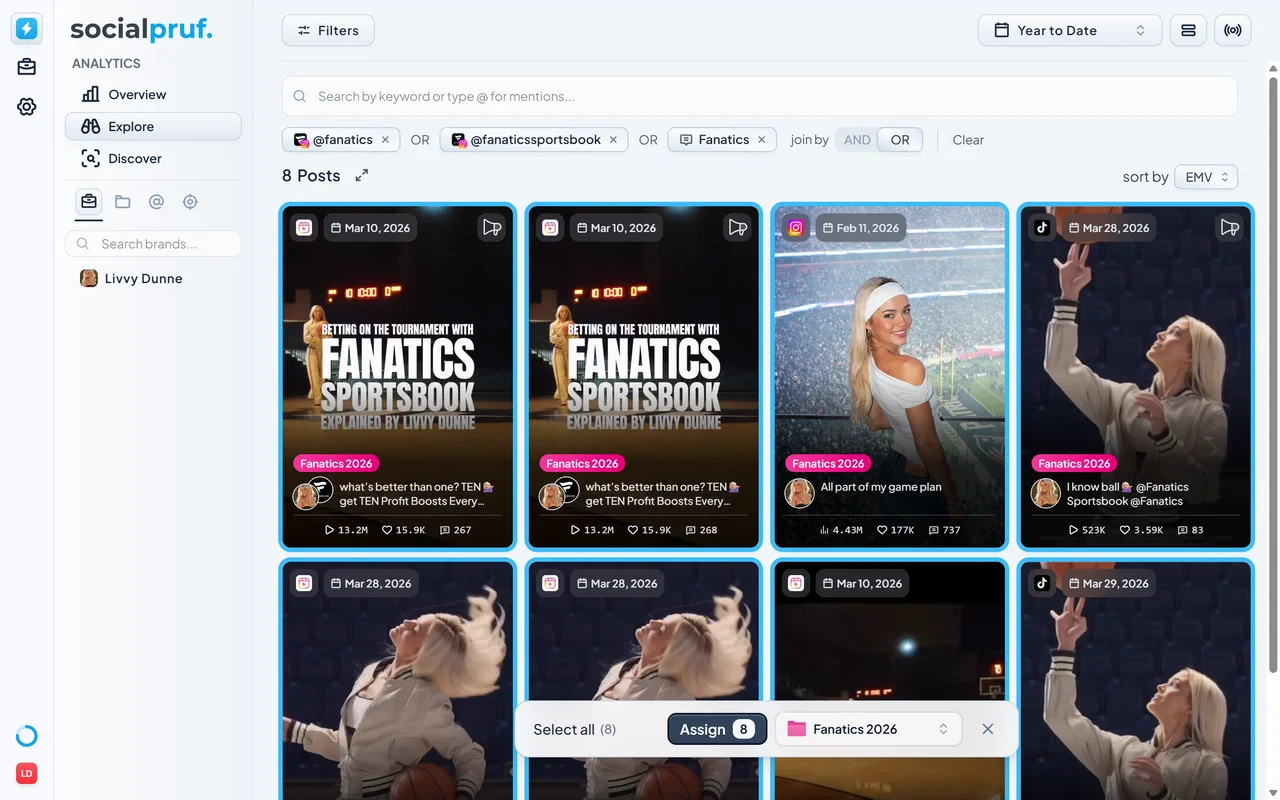
For each brand on your list:
- Back on the Explore page, type the brand's name into the keyword search (or use
@brandhandlefor tighter precision). - Review the results to confirm they're actual partnership posts and not incidental mentions.
- Use Select Multiple or Select All to highlight every relevant post.
- Click Add to Campaign and choose Create new campaign.
- Name the campaign clearly — something like "Nike × [Creator Name]" or "Nike Partnership 2026" — then click Assign.
Repeat for every brand. If a brand has multiple discrete campaigns (a spring launch and a fall launch, say), you can either roll them into one campaign or split them into two — your call based on how granular you want the final portfolio to read.
💡 Stay consistent with naming: Campaign names appear as rows in your final portfolio report. A consistent naming convention makes the report look polished and intentional — not ad-hoc. Pick a format like "Brand × Creator" or "Brand Partnership [Year]" and stick with it.
Step 3: Group the campaigns into a portfolio folder
You now have a campaign per brand. The next step is to group them so the portfolio reads as a single organized package, not a scattered collection.
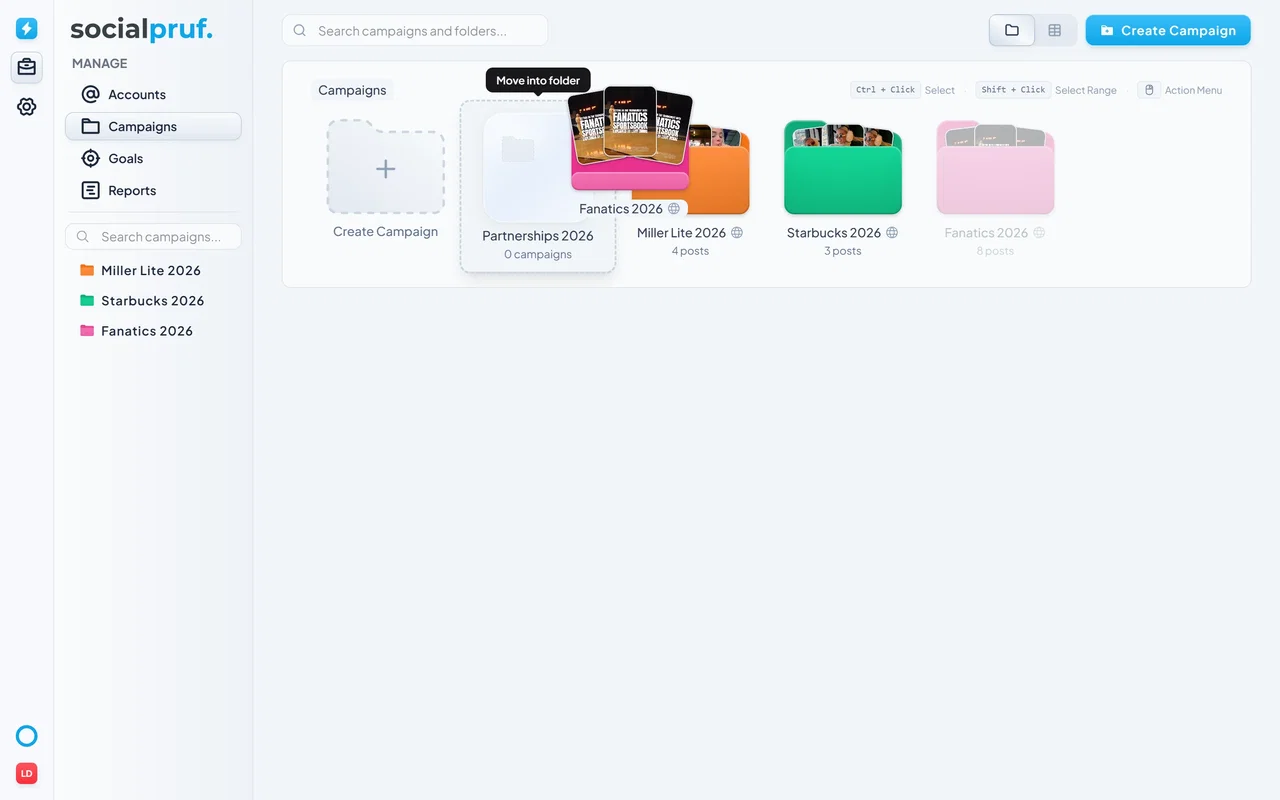
To create your portfolio folder:
- Head to the Manage page and click the Campaigns tab.
- Drag one brand campaign on top of another in the left rail. This creates a folder containing both campaigns.
- Drag the rest of your brand campaigns into the same folder.
- Rename the folder something descriptive like "[Creator Name] Brand Partnerships" or "[Creator] Sponsor Portfolio 2025".
The folder is now your single, top-level container for everything in the creator's partnership history — ready to be filtered as one unit anywhere in Socialpruf.
Step 4: Build and share the portfolio report
This is the payoff — turning your organized folder into a polished, shareable report. The report will display every brand partnership campaign as a row, with full KPIs visible side by side.
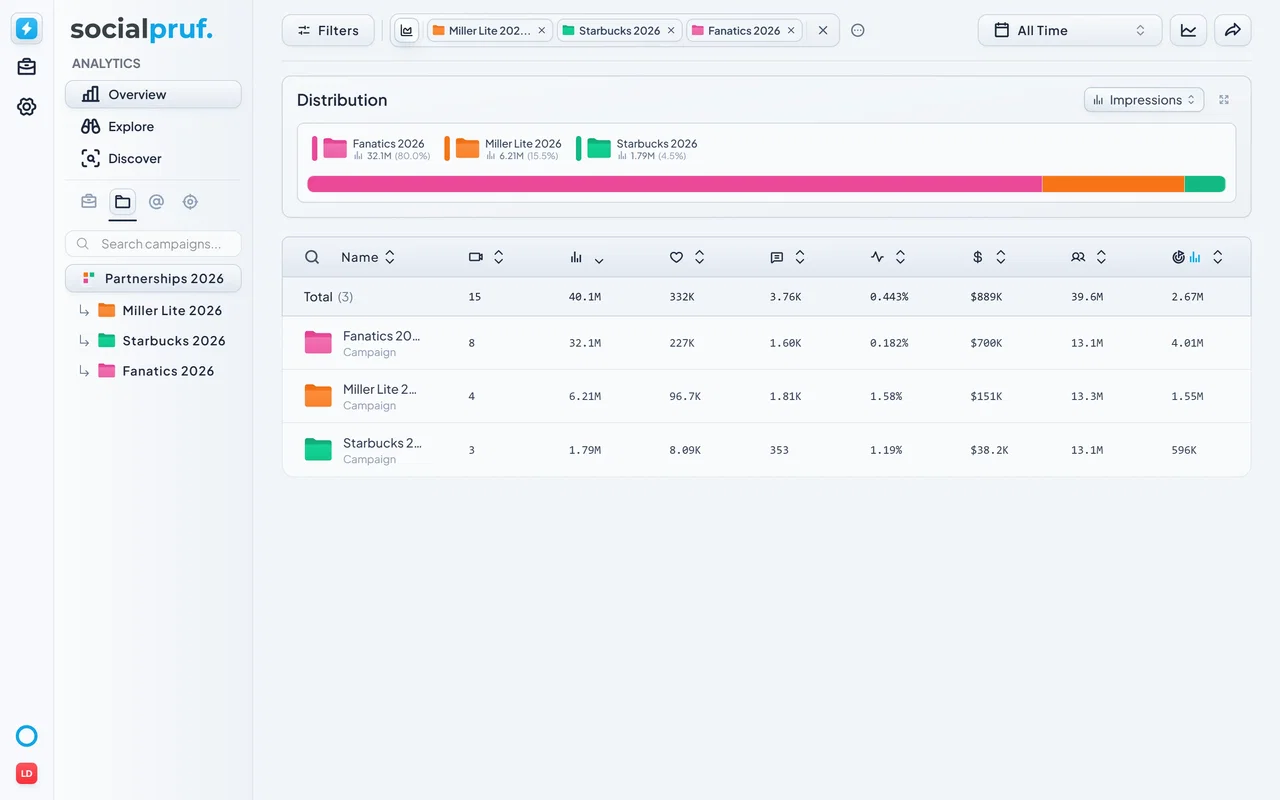
To create the portfolio report:
- Head back to the Overview page in the Analytics tab.
- Click Table View in the top right.
- In the left rail, select the folder you created in Step 3. The dashboard now shows every brand campaign as a row, with aggregated KPIs across the entire portfolio.
- Click Create Report in the top right.
- Choose your report type (see guidance below) and click Generate Report.
- Copy the resulting hyperlink — that's your portfolio.
When you send this link to a prospective brand, they'll see a fully interactive version of your dashboard. They can click into individual brand campaigns to see the actual content, expand KPIs for deeper insights, and review every metric Socialpruf tracks.
Public Link vs. Custom Report — which to use
- Public Link — captures the exact view at the moment of creation, with all KPIs and content interactive. Use this when you want a prospective brand to have full visibility into the creator's performance across every partnership.
- Custom Report — lets you select and deselect specific KPIs. Use this when you want to highlight certain metrics (for example, leading with engagement rate and EMV while hiding follower count if it's not flattering) for a more curated pitch.
💡 Reports stay fresh automatically: Reports update on the hour. The link you send a brand today will still show accurate, current data weeks later — no need to regenerate or resend each time a new partnership goes live.
Step 5: Put your portfolio to work
Once you have the link, here are the highest-leverage ways to use it:
In outbound pitches Drop the link into prospecting emails, framed as: "Here's a live look at every brand partnership [Creator] has run this year, with full performance data for each." It positions the creator as a serious, data-driven partner — not just another influencer.
In your media kit or pitch deck Add the link to your media kit's appendix or embed it as a clickable element in slide decks. Brands who want to dig deeper can self-serve, and brands who don't still see that the receipts exist.
In RFP responses When a brand asks for past performance proof during an RFP or RFI, the portfolio link is far more credible than a screenshot or hand-picked stats. It's harder to argue with a full, live dataset.
Internally Share with your sales or partnerships team so everyone has a single, up-to-date view of the creator's track record when fielding inbound inquiries. No more digging through old reports to answer "what did we do with Brand X again?"
Step 6: Variations and next-level moves
Single-brand deep-dive Pitching a renewal or expansion with a brand the creator already works with? Skip the folder step. Build one campaign for that brand and report from there — you'll get a focused view of every post the creator has done with that specific brand.
Multi-creator agency portfolio For agencies repping multiple creators, repeat this entire workflow for each creator, then group the resulting folders together at the agency level. You'll end up with a roster-wide portfolio you can pitch to brands looking for talent matches.
Performance-tiered portfolios Instead of organizing by brand, organize by performance tier — "Top-Performing Partnerships," "Recent Launches," "Always-On Collabs." This lets you tailor what you send based on the type of partnership the prospective brand is exploring.
Automate forward with Dynamic Campaigns Set up a Dynamic Campaign for each brand using mention rules. New partnership posts will auto-populate into the right campaign as they go live, keeping the portfolio current with zero manual work.
What you've built
- A live, shareable portfolio report covering every brand partnership a creator has run.
- Each brand has its own campaign showing partnership-specific performance — not just aggregated stats.
- Campaigns are grouped in a single portfolio folder that filters to your full portfolio in one click.
- Recipients see a fully interactive dashboard — KPIs, content, and metrics — without needing a Socialpruf account.
- The link updates automatically on the hour, so it stays accurate without manual regeneration.
- The whole workflow takes 15–20 minutes and can be reused for every creator on your roster.